HWID Limit Reset for Octoplus Tools
General information

Digital product. No refunds, no returns.
The order will be processed within 1-2 minutes during business hours, starting from the moment we receive your full payment. and all the required information. We will send the beginner instructions to your email.
This option allows you to reset the HWID change limit of your Octoplus Renew activation, which allows up to 12 computer (HWID) changes per year.
When Do You Need It
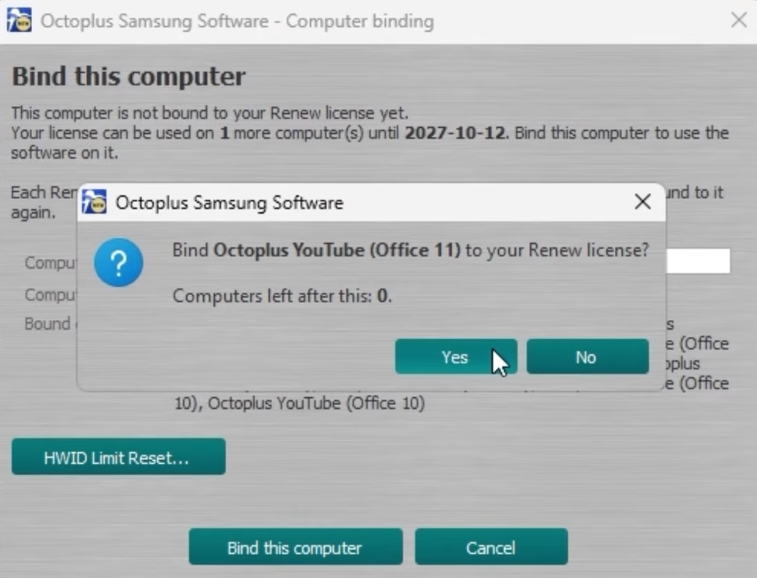
You`re trying to bind another computer and see this kind of notification informing you that you have already bound 12 computers or will reach the limit soon (Computer changes left: 0).
The HWID Limit Reset ia intended for users with the following activations:
- Octoplus FRP Tool Renew
- Octoplus Samsung Tool Renew
How It Works
- If you have already used all 12 HWID changes available for your Octoplus Tool Renew activation, this option allows you to reset the counter to zero and receive another 12 HWID changes until your Renew activation expires.
- Switching between computers that are already bound to your activation does not count as an HWID change and does not reduce the number of available changes.
- Each time you bind a new computer to your activation, one HWID change is deducted from your remaining limit.
- Octoplus software can only be used on a computer that is bound to your license and has an Octoplus dongle connected to it.
- You can use your reset string only once, so use it only for the intended reset.
How to Order an HWID Limit Reset
When you are approaching the limit or have used all 12 available HWID changes (Computers: 12 of 12 used), you can purchase an HWID Limit Reset activation.
- Place your order on the GsmServer website.
- Once your payment has been received and your order has been processed, we will send an email containing your HWID Limit Reset String.
How to Use HWID Limit Reset String

When you try to bind another computer after reaching your HWID limit, the following window will appear.
1. Click the HWID Limit Reset... button.
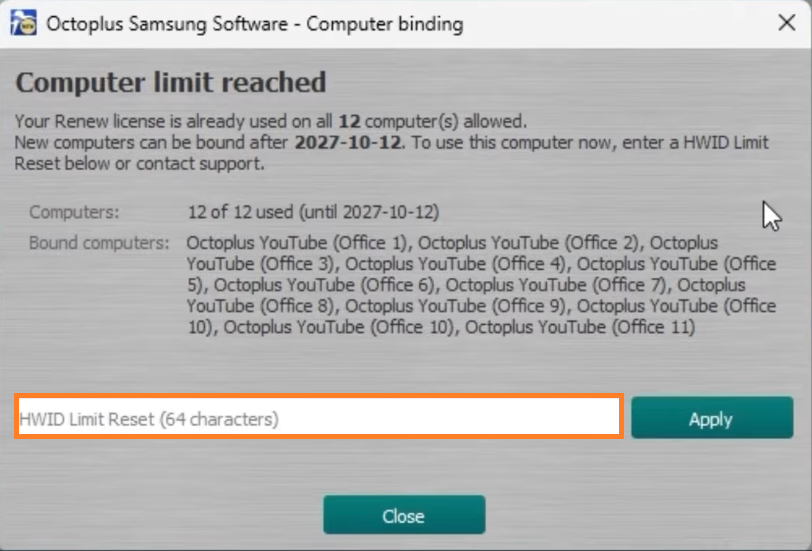
2. Enter your HWID limit reset string. Click Apply
You can use your HWID limit reset string only once, so use it only for the intended reset when you don`t have any changes left. If there are still changes available, they will be lost
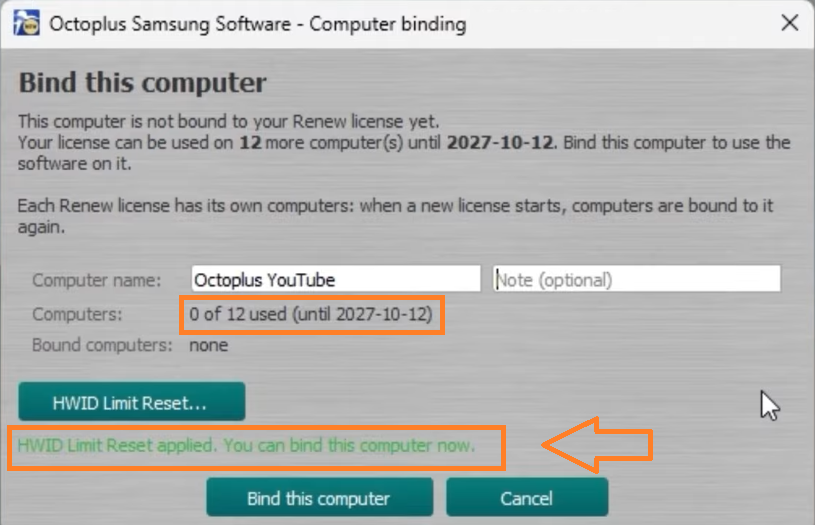
3. Done! You can now bind more computers within your renewed limit.
Instructions
How to Order an HWID Limit Reset
When you are approaching the limit or have used all 12 available HWID changes (Computers: 12 of 12 used), you can purchase an HWID Limit Reset activation.
- Place your order on the GsmServer website.
- Once your payment has been received and your order has been processed, we will send an email containing your HWID Limit Reset String.
HWID Limit Reset String
When you try to bind another computer after reaching your HWID limit, the following window will appear.

1. Click the HWID Limit Reset... button.

2. Enter your HWID limit reset string. Click Apply
You can use your HWID limit reset string only once, so use it only for the intended reset when you don`t have any changes left. If there are still changes available, they will be lost

3. Done! You can now bind more computers within your renewed limit.
